Controls & Settings
Good controls won’t beat Baldi for you, but bad ones will lose you runs. This guide lists the default keyboard and mouse controls of Baldi’s Basics Plus, explains the map controls most players never fully use, and covers the settings that matter: key bindings per save file, controller support, captions and reduced flashing.
Default controls
| Action | Keyboard and mouse |
|---|---|
| Move | W A S D |
| Run | Left Shift |
| Look back | Space |
| Interact with doors, notebooks, machines | Left mouse button |
| Use the selected item | Right mouse button |
| Choose an item | Mouse wheel or 1–5 |
| Quick map | Tab |
| Advanced map | M |
| Pause | Esc |
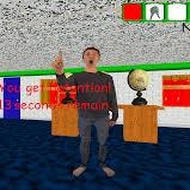
All of these can be changed in Options. If you are not sure what your current bindings are, play the tutorial: its chalkboards show your current controls and refresh whenever you unpause, so changes you make mid-tutorial show up right away.
The controls that win runs
- Look back. Space shows what is behind you without turning around, so you can check on Baldi while running at full speed.
- Look back plus an item. Use a BSODA while looking back and the spray goes behind you, which pushes a chaser away without breaking your stride.
- Number keys. 1–5 select an item instantly. Scrolling through the inventory in a chase wastes time.
- Quick map. Tab shows what you have explored, without stopping the game for long.
Map controls
The advanced map is more than a picture of the level. Since version 0.8 it has on-screen controls for zooming, scrolling, placing markers and checking the timer.
| Feature | What it does |
|---|---|
| Markers | Place and remove them on the advanced map; they also appear in the quick map’s 3D view |
| Push pins in pairs | Since version 0.10, mark connections such as a vent’s entrance and exit or a button and the door it controls |
| Grid | Added to the advanced map in version 0.14.2 |
| Applied stickers | Since version 0.13.1, viewable from the map menu at any time |
| Mirrored quick map | Since version 0.14.2, the quick map mirrors when you are upside down |
On Factory and Laboratory levels, pin every button and the door or belt it controls. It takes a few seconds and saves you from guessing later with Baldi on your heels.
Bindings per save file
Since version 0.14.2, control maps are saved separately for each save file instead of being shared between all of them. Two people can share a computer with different bindings, each on their own file. The change also meant that bindings from older versions didn’t carry over, so anyone updating to 0.14.2 had to set their controls again.
The developer had planned new default controller settings for 0.14.2 but postponed them after feedback. The default controls stayed the same as in earlier versions.
Playing with a controller
- The game supports controllers, including navigation of menus and file creation.
- Since version 0.9, an in-game keyboard is used for entering save file names, which makes naming files easy with a controller.
- Holding the run button speeds up the virtual cursor.
- Since version 0.10, the game pauses automatically when a controller disconnects.
Accessibility settings
| Setting | What it does |
|---|---|
| Captions | Show sounds and speech as text. Since version 0.14.2 they use brackets, like most captioning standards |
| Reduced flashing | Reduces flashing effects; for example, it skips the flip animation of gravity flippers during Gravity Chaos |
Captions are especially useful in a game built around sound. Character voices and most sound effects are captioned, so you can follow what is happening even with the sound low.
Save files
When a save exists, the main menu shows a continue button and a new game button. Starting a new game asks you to confirm that you are okay losing the current save. In Hide & Seek, the game saves at the Save & Quit spot in the Pitstop, and since version 0.14.3 quitting from the pause menu while in the Pitstop also saves your game.
Setup checklist
- Sound on, ideally with headphones: Baldi is easier to locate.
- Captions on if you play with low volume.
- Bindings checked on your save file after updating.
- Item keys 1–5 within easy reach.
- Look back on a key you can press while running.
FAQ
Why did my controls reset?
Version 0.14.2 started saving control maps per save file, and older bindings didn’t carry over. Set them again in Options.
How do I see my current controls?
Play the tutorial. Its chalkboards show your current bindings.
Can I spray BSODA behind me?
Yes. Hold look back when you use it.
Ready to put the controls to use? The Beginner Guide covers your first minutes on a level, and our game modes guide explains where to practice.